Wiki
2. Adding a Wiki Activity
Go to the course website and enable edit mode.
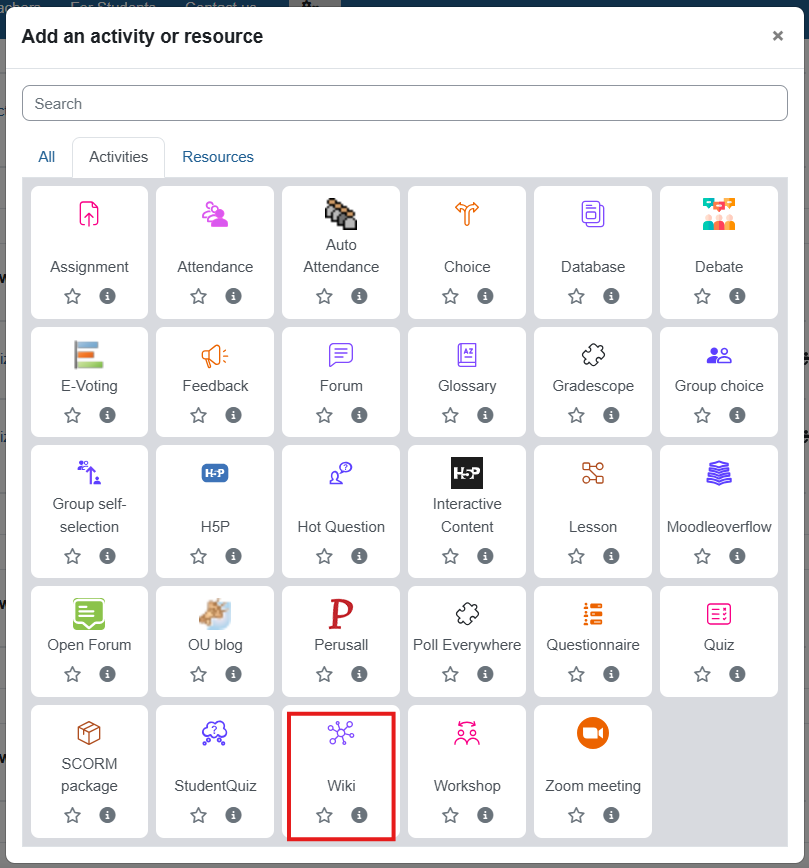
In the desired teaching unit, click "+ Add an activity or resource" and select the resource "Wiki".
General settings
- Name: Choose a meaningful name for the activity.
- Description: Write instructions for the assignment for the students.
- Wiki mode: Define whether you want one wiki for all students (collaborative), or a separate individual wiki for each student.
- First page name: Choose a title for the wiki's main page.
You can also add various access restrictions:
- Date: The activity will be open on certain dates only.
- Grade: The activity will only be open to students who have received a grade above/below a certain value in another activity on the site.
- Group: The activity is only available to students who belong to a certain group.
- User profile: The activity is only available to participants with certain attributes (less recommended).
To complete the process, click "Save and return to course".
צבע רקע
גופן
צימוד אותיות
גודל גופן
תצוגת תמונות
ריווח אותיות
גובה קו
הדגשת קישורים
Text Alignment
צבע טקסט